Docs menuBrowsing and web apps
On this page7 sections
Browsing
The browser is part of the desktop. Each site opens in its own window, which tiles beside your apps like any other.
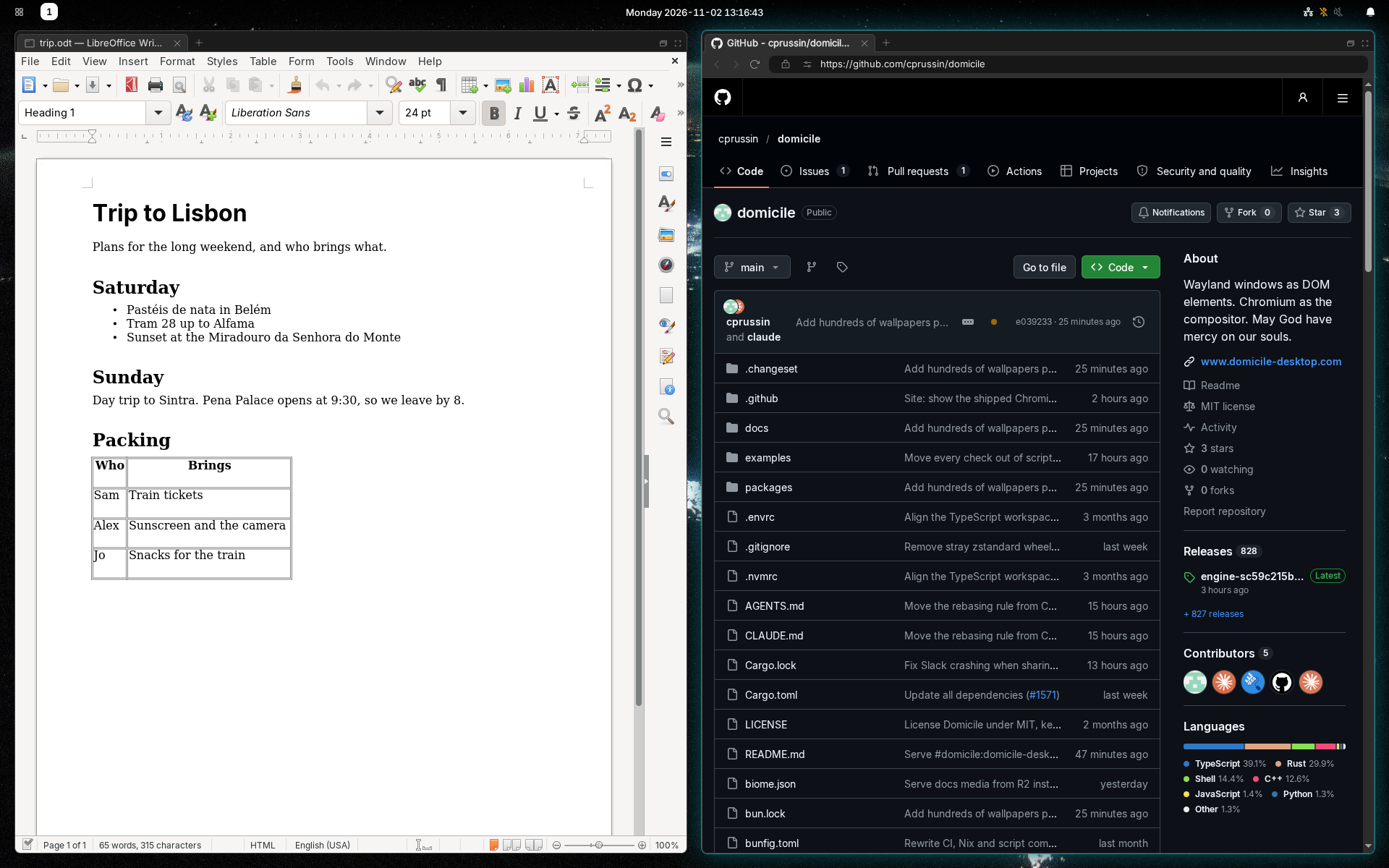
Open a site
- Press Meta+Space, type an address or a search, and press Enter.
- Meta+Shift+Space opens the address you copied, or searches for the text.
- Links clicked in your apps open here too, and so do PDFs, images and videos you open from the launcher.
domicile open <address>opens one from a terminal.
A new tab is a new window: it opens beside the one you were in, in the same group. Meta+W puts a group in tabs.
The address bar
Each browser window has one, with:
- Back, forward and reload.
- The connection: a lock on a secure site, a warning on one that is not. Click it for why.
- Site permissions: what this site may use, such as camera, microphone, notifications and location. Change them there.
- Zoom: out, in, and the level, which resets to 100% when clicked.
- Downloads, while there are any: how far each has come.
Right-click a page for its menu: open a link in a new window, copy or save an image, search for the selection.
Private windows
The launcher offers each site and search a second time, private. A private window's address bar is tinted and says "Private", and its cookies and history are forgotten when the last private window closes. Windows a private window opens are private too.
Type !p anywhere in the launcher to see only private choices.
Web apps
A site can be an app: it opens in its own window with no address bar, and is listed in the launcher by name.
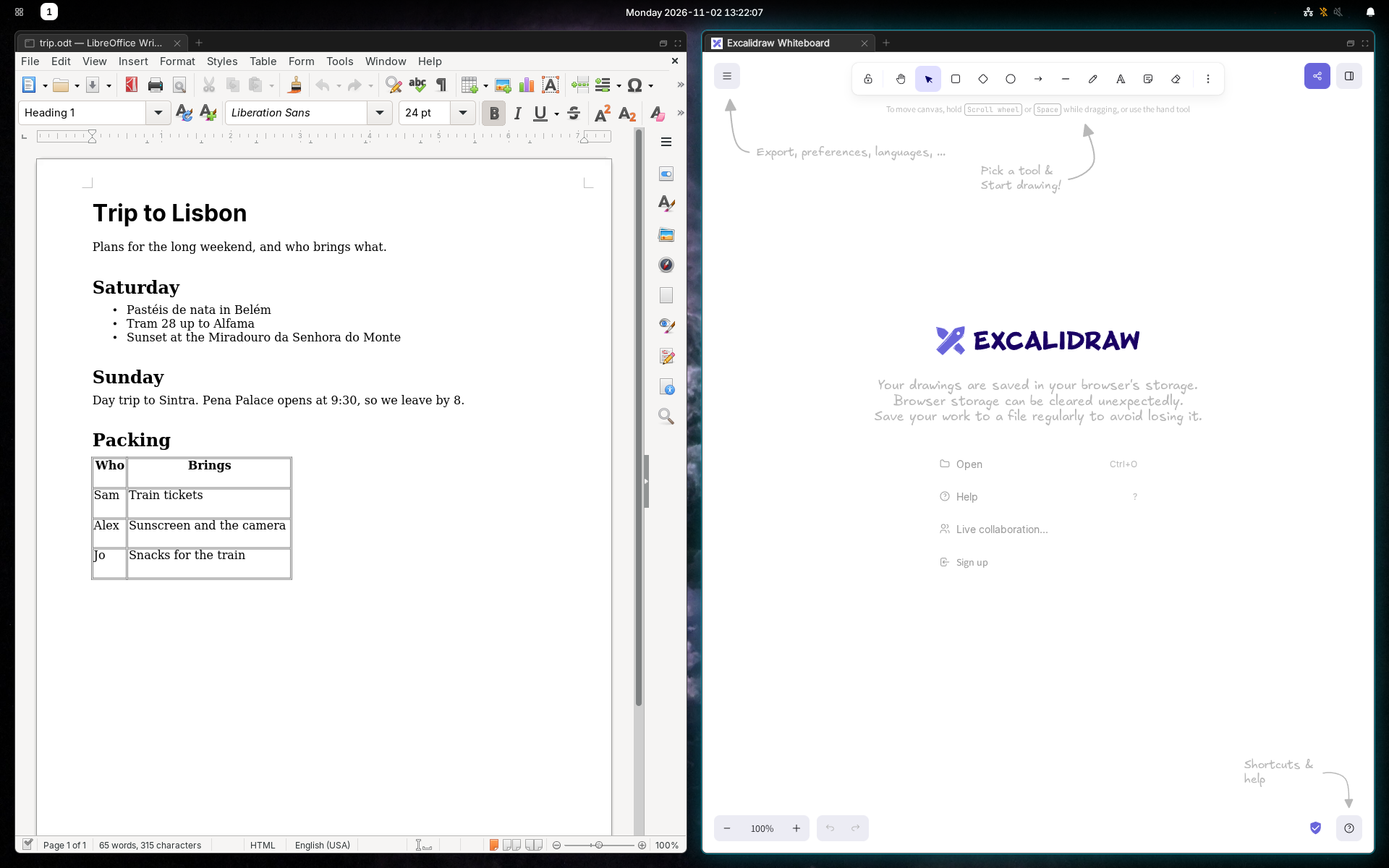
- Add one from a terminal:
domicile install-app <address>. It reads the site's name and icon from the site. - Remove it with
domicile uninstall-app <address>. - Open a site as an app once, without adding it:
domicile open --app <address>. - Links that leave the app's site open in a browser window.
On NixOS, list them in your home configuration:
programs.domicile.webApps.Music = { url = "https://music.example/"; icon = "multimedia-audio-player";};Extensions
Chrome extensions work in every browser window. Their buttons sit in the top bar's tray; a click opens the extension's popup under it.
Open Settings, then Extensions. Switch each one on or off, open its options, or Load unpacked folder to add one from a folder.
Differences from Chrome
The browser is Chromium, with the desktop in place of Chrome's own window and menus. So:
- No saved passwords, autofill or translation. Use a password manager extension. Bitwarden is the one checked here: its popup, sign-in window and passkeys. Others are untested.
- Passkeys come from your password manager extension. The browser has no passkey prompt of its own.
- No Chrome sign-in or sync. Chrome's settings and profile menu aren't here.
- No
chrome://pages and no Print Preview. Ctrl+Shift+P prints through the desktop's print dialog. - Manifest V3 extensions only. uBlock Origin Lite works; uBlock Origin does not.
- Some extension features are missing, such as items in the right-click menu, extension shortcuts and moving tabs.
Sites are told the browser is Google Chrome, as some sign-ins require.
History and site data
- History, in the launcher, lists the pages you visited by day, with search and Clear browsing data.
- Settings' Site permissions lists every site's permissions, and Site data what each site stores, largest first, with Remove.